Git, GitHub, & Markdown Resources
Contents
- Git, Github, and Markdown
- 2. Writing in Markdown
- Your Turn
- 3. Using GitHub
- How to create a repository
- Your turn
- Editing and uploading content
- 4. Branching & Collaboration with Git
- Branching workflow
- 5. Working locally
- Installing Git
- Configuration
- Clone the repository
- 6. Git Versioning process
- Git workflow
- Your turn
- Resources
Git, Github, and Markdown

- Git - open-source software for version control
- GitHub - a popular code repository for sharing and collaborating
- Markdown - a lightweight, human-readable markup language
Git
- What it does
- Version control!
- Git keeps track of file changes and enables you to label them and preserve multiple version histories of a project
- Why use it?
- Avoid file conflicts! Other collaboration/syncing tools are not designed for code
- It helps you test code, troubleshoot, or ‘undo’ changes
- Be intentional: package your changes logically, document and explain your work
GitHub

- What does it do?
- It hosts code and enables users to manage collaboration on projects (using Git for version control).
- Why use it?
- Widely used to develop and share open-source tools and datasets
- Free web hosting with static site builder (GitHub Pages)
- Makes collaboration visible and transparent
Markdown
- It’s a markup language: it encodes information in plain-text to be machine readable. Markdown uses the file extension
.md - Why use it?
- Sustainable, open-source word-processing
- Easier to read and write than HTML & other markup languages
- Can be converted into any kind of document - including presentations like this one!
- Used on many platforms (GitHub, Notion, Obsidian, Roam…)
Vocabulary
- Repo or repository (n.)
- A discrete project on GitHub that contains a set of files, a change history, and a set of contributors. (E.g. this one)
- Fork (v.)
- To copy a repo’s files and version history to a new one with its own settings (preserves connection with original repo but doesn’t interfere).
- Clone (v.)
- To download a local copy of a repo on GitHub with a tracked connection to the remote repo.
- Local (adj.)
- On your computer.
- Remote (adj.)
- On someone else’s computer (aka ‘the cloud’).
- Branch (n.)
- A version of a repository with its own history. Branches can be created for a unique set of changes and later merged with the main branch to avoid file conflicts.
- Commit
- (v.) To package and label a discrete set of changes to a repository.
- (n.) A set of changes that has been committed.
2. Writing in Markdown
# First level heading
## Second-level heading
Paragraph with **bold** text and *italicized* text.
[This is linked text](www.myurl.com)

See this cheat sheet for more markdown syntax.
Your Turn
- In Visual Studio Code, create a new file (File > New File) named
myfile.md - Open the file and write some content using markdown syntax: include headers, images, and links
- Save your file
- On the left sidebar, right-click on the filename and select Open Preview to see what your site looks like in rendered markdown
3. Using GitHub
We’ll take a tour of a repository for an open-source word cloud generator

How to create a repository
- Create an empty repository on GitHub or import one from your computer
- Copy an existing repository (by forking or using a template)
- Add recommended files: a README.md for documentation, a license and a .gitignore
Your turn
Create a repo from a template
- Navigate to the repo for this workshop: github.com/digbmc/git-hub-ws
- Click on Use this template and then Create a new repository
- Give your repository a name and a description
- Select ‘copy only main branch’
- Your new repository has the same files and change history, but not a tracked connection to the original
Editing and uploading content
4. Branching & Collaboration with Git
Branching workflow
5. Working locally
Git enables you to have a local version of your repository (on your computer) that is connected to the remote (on ‘the cloud’) version.
By pulling commits from remote to local and pushing commits from local to remote, you can control the version history of both.
Installing Git
GitHub Desktop
Install a GUI client (an application with a graphical user interface) such as GitHub desktop
Command line
Install Git here to use it from the command line and/or use Git/GitHub features for VS Code or another text editor </section>
Configuration
GitHub Desktop
- Open GitHub Desktop
- From the top menu, under GitHub Desktop: Preferences > Accounts > GitHub.com > Sign in
- Sign in using your GitHub account credentials
Visual Studio Code
- In VS code, navigate to the Source Control tab
- You will be prompted to sign in to GitHub and authorize VS code with your github account
- see also these instructions
Command line
Open a terminal window and type:
git config --global user.name "Firstname Lastname"
When you push, you will have to authenticate to github with a personal access token
Clone the repository
- Create a folder on your computer for workshops (if you don’t already have one)
Visual Studio Code
- In the Source Control tab, you will see an option to Clone a repository
- Select the new repository you have created
GitHub Desktop
- Navigate to your new repository on github. From the ‘Code’ dropdown menu:
- Select ‘Open with GitHub Desktop’ and put it in the workshop folder
- Open the folder in VS Code (add folder to workspace)
Command line
- Navigate to your new repository on github. From the ‘Code’ dropdown menu:
- Copy the url ending with .git. In your terminal, navigate to the workshop folder and type
git clone [git url] - Open the folder in VS Code (add folder to workspace)
6. Git Versioning process
Git workflow
Add or Stage changes
git add newfile.md
After you create a new file or save changes, staging tells Git to track the file.
commit
git commit -m "message describing my changes"
Package your staged changes and label them for others’ awareness
pull
git pull
Update your local repo with any changes that have been committed to the remote repo
push
git push origin main
Send your changes to the remote repository and publish them on GitHub
Other commands
git status- see if you have staged changesgit branch branchname- create a new branchgit checkout branchname- switch to another branch
Your turn
- Make some changes and save the files.
- Stage your changes:
- In VS Code, use the plus icon to stage a change
git add --all
- Commit your changes, with a message
- Enter a message into the ‘message’ field and select ‘Commit’
git commit -m "message"
- After a few commits, push to the remote repo:
- “Publish Branch”
git push origin main
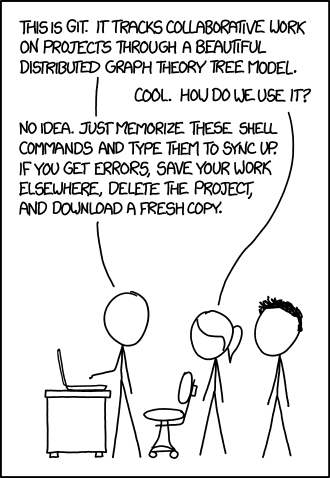
Remember, it’s ok to mess up! Source: xkcd
Resources
Git
- Git command line cheatsheet
- GitHub Desktop, a GUI client for Git
- Git features in VS Code
GitHub
Content by Alice McGrath and licensed cc-by-nc-sa